FAQ
Client Instance Creation Failed
- Check if your local network is properly connected.
Ensure your device is successfully connected to the internet with a stable network status.
- Press Win + R to open the Run window, type
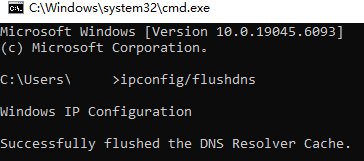
cmdin the input box, and click “OK.”In the Command Prompt window that appears, type the following command and press Enter:
ipconfig /flushdns
This will clear the local DNS cache, which may help resolve connection issues caused by DNS resolution problems.
- Try using a proxy acceleration tool.
If your network environment has access restrictions or high latency, consider using a proxy acceleration tool to improve connection speed and stability, resolving issues with connecting to the server.
Unable to Start Download Engine or File Download Errors Occurred
- Verify the integrity of client files.
Ensure that no local client files are missing or corrupted. It’s recommended to download and install the latest version of the client to ensure all program files are complete and functional.
- Disable antivirus software or add to whitelist.
If you have third-party antivirus software or are using Windows’ built-in security (e.g., Windows Defender), it may mistakenly block the client program.
Try one of the following:- Add the client installation directory to the antivirus software’s “whitelist” or “trusted list”;
- Temporarily disable the antivirus software and try running the client again.
- Press Win + R to open the Run window, type
cmdin the input box, and click “OK.”In the Command Prompt window that appears, type the following command and press Enter:
ipconfig /flushdns
This will clear the local DNS cache, which may help resolve connection issues caused by DNS resolution problems.
- Try using a proxy acceleration tool.
If your network environment has access restrictions or high latency, consider using a proxy acceleration tool to improve connection speed and stability, resolving issues with connecting to the server.
Disable Memory Compression
-
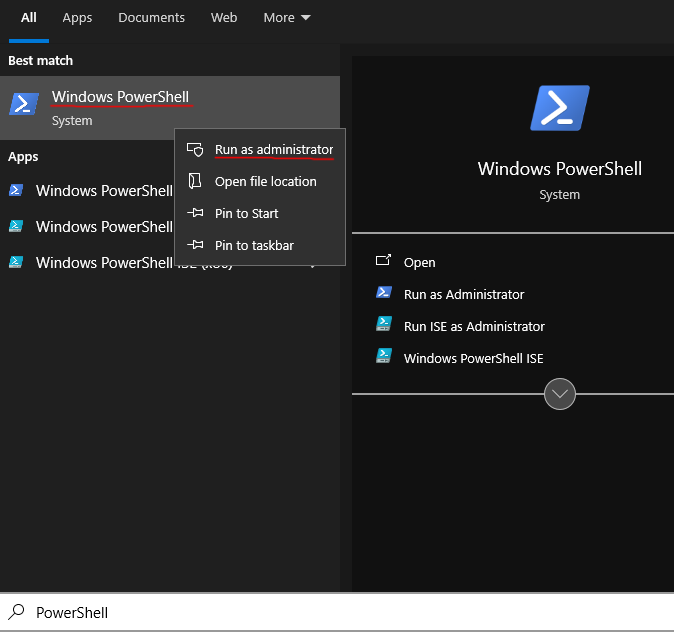
Run PowerShell as Administrator
Left-click the Windows icon at the bottom-left of your desktop and search forPowerShell
Right-click → Run as Administrator
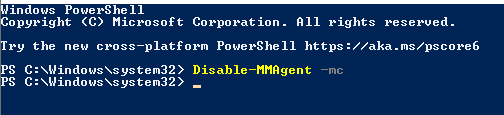
- Execute the command to disable memory compression
- Then restart your computer
No Valid Product Found in Inventory
Your account currently has no active subscriptions. Please contact your distributor to obtain a valid license key and complete the activation process before using the client.Unable to Connect to FPGA Device
- Ensure the DMA board is properly connected and plugged into a USB 3.0 port (typically a blue port) on the second PC.
- Verify that the appropriate drivers for your device are installed. If not yet installed, visit the Resource Download page to download and install the drivers matching your device model to ensure proper functionality.
- If the connection is unresponsive, try the following:
Unplug and replug the USB cable.
Power off the host PC, restart, and try again.
Do I Need to Manually Update the Client?
The client supports automatic updates by default, so manual updates are typically not required. You only need to manually download the latest client program if the automatic update fails or encounters issues.How to Manually Update the Client
Visit the Resource Download page to download the latest version of the client package. After downloading, extract all files from the package and replace all files in your current client directory to complete the update. It’s recommended to close the running client program before updating.How to Change Bound Device
When you log in on a new device, the system will prompt you to switch your account binding to the current device.Click “Confirm” to complete the automatic device binding.
⚠️ Note: Each time you switch devices, 3 days will be deducted from your remaining subscription time.
How to Convert Account Type
Move your mouse over the Account Type button and click to enter the conversion page.User Type Conversion Rules
Subscription types can be converted between Basic and Pro versions. The conversion rules are as follows:-
Pro → Basic
- Converted time = remaining time × 1.4 × 0.98
- Example: 30 days remaining on Pro → approximately 41.16 days on Basic
-
Basic → Pro
- Converted time = remaining time × 0.7 × 0.98
- Example: 30 days remaining on Basic → approximately 20.58 days on Pro
⚠️ Note:
- Each conversion incurs a 2% fee (already included in the formulas above).
- Repeated conversions back and forth will gradually reduce the total remaining time.