Cloud Map

Cloud Map

  • Description:
    The Cloud Map feature allows sharing the local map window with remote teammates via their browsers, enabling real-time collaborative viewing.
  • Steps to Use:
  1. In the “Type” option, select the appropriate sharing method:
    • Public: Uses the official server for sharing, simple to set up, recommended for general users.
    • Custom: Uses a self-hosted server, suitable for users with deployment capabilities, offering full control over the sharing environment.
    • Local Host: Shares via a local network; the system automatically detects an IP suitable for forming a LAN, ideal for sharing with other devices on the same network.
  2. In “Preferred Server,” select a node physically closer to you or your teammates to improve connection stability (ignore this if not using a public server).
  3. Click the Random button next to “Channel” to generate a unique channel ID. If the ID is compromised, click again to generate a new one to ensure privacy.
  4. If using a self-hosted server, you must enter the corresponding access key; otherwise, connection will fail.
  5. Set the “Observer Count” to limit the number of users who can access the map via browser simultaneously.
  6. If you plan to use this feature long-term, check Auto Enable to automatically load the Cloud Map module on software startup.
  7. Click Connect to start sharing the map. If the connection fails, try switching servers or verify your self-hosted server configuration.
  8. Click the Copy button next to “Observer URL” to copy the access link and share it with your teammates, who can then view the shared map in real-time via their browsers.

Network Statistics

  • View network latency, packet loss rate, and other metrics to assess the connection status with the preferred server.
  • If the network condition is poor, try switching to another server node for a smoother experience.

Player Settings

  • Configure whether player information is displayed in the remote browser.
  • Adjust the “Visible Distance” to limit the range of players visible in the remote teammate’s browser.

Vehicle Settings

  • Configure whether vehicle information is displayed in the remote browser.
  • Adjust the “Visible Distance” to limit the range of vehicles visible in the remote teammate’s browser.

Supply Settings

  • Configure whether supply information is displayed in the remote browser.
  • Adjust the “Visible Distance” to control the range of supplies displayed in the remote browser.

Package Settings

  • Configure whether package information (e.g., airdrops, death boxes) is displayed in the remote browser.
  • Adjust the “Visible Distance” to limit the range of packages visible.
  • If the “Supply List” is enabled, remote users can click package icons on the map to view the specific contents of the package.

How to Use a Private Server
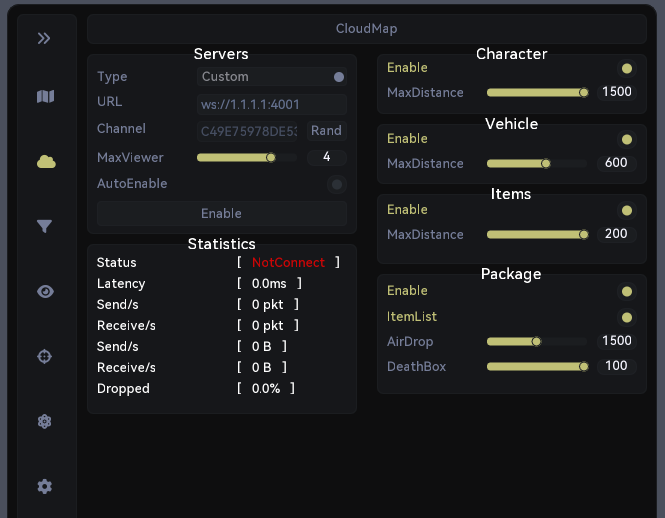
cloudmap Set the type to Custom, then enter the following format in the map field:
ws://<ServerIP>:4001
After entering, click Enable to activate.
⚠️ Note: Do not use the example IP address shown in the image; ensure you enter your actual server IP!